
10 Best Interactive Boards for Schools and Businesses

Choosing the right Interactive Boards can reshape how teachers explain ideas and how teams collaborate. A responsive display may turn a quiet classroom into a space filled with diagrams, student questions, and shared problem-solving. In a business meeting, it can replace scattered notes with one visible, editable plan. Yet impressive specifications do not guarantee useful learning or productive teamwork.

This guide examines 10 of the best Interactive Boards for schools and businesses. Each option is considered through practical details, including screen size, writing accuracy, software compatibility, connectivity, accessibility, installation, and long-term support. Teachers may value simple annotation tools, while IT managers often prioritize security, device management, and dependable updates. Businesses may need smooth video conferencing and fast file sharing. Different settings require different strengths.

Small details matter. Can several users write at once? Does the board remain clear beside a bright window? Can a student reach the lower corner comfortably? These questions often reveal more than marketing language. A powerful processor is helpful, but confusing menus can waste valuable lesson time. A low purchase price may also hide expensive mounting, training, or maintenance needs.

No single model wins every situation. That is worth remembering. The recommendations balance expert specifications with realistic daily use, while acknowledging that performance can vary across classrooms, networks, and meeting rooms. Readers should compare current prices, warranty terms, privacy features, and local support before purchasing. The goal is not to promote technology for its own sake, but to identify Interactive Boards that offer dependable value where people actually use them.
10 Best Interactive Boards for Schools and Businesses

What Interactive Boards Are and How They Support Learning and Work

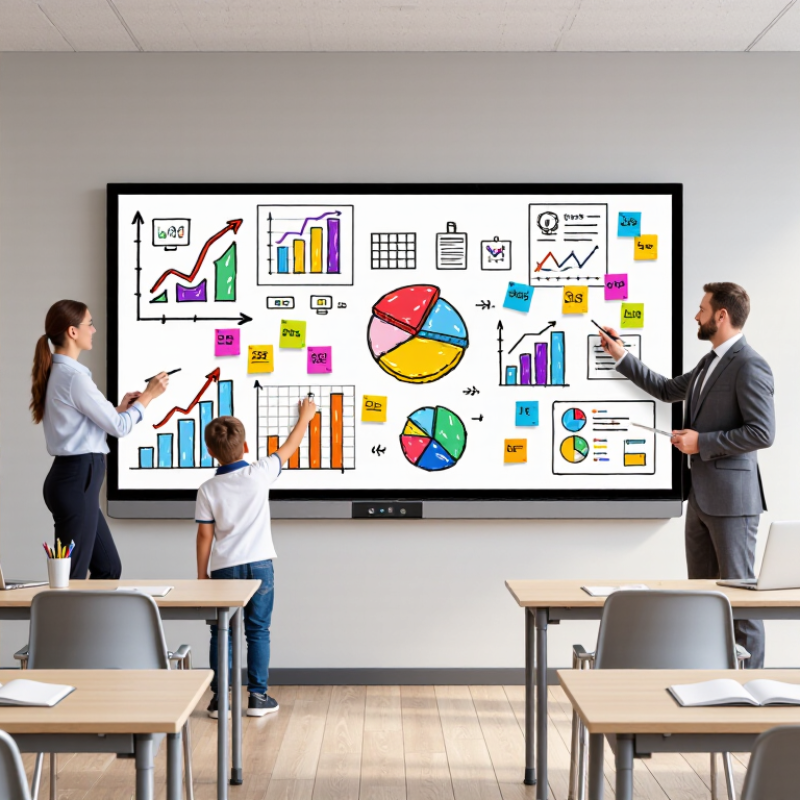
Interactive boards are large, touch-enabled displays that combine writing, visual content, video, and remote collaboration. They replace static whiteboards with a shared digital workspace. In a classroom, a teacher can annotate a diagram, move a timeline, or let students solve problems directly on the screen. The room changes.

This interaction can support learning when it serves a clear teaching purpose. UNESCO’s Global Education Monitoring Report 2023 notes that technology can improve access, but evidence of learning gains remains mixed. The report also found that one in six countries had national smartphone bans in schools, showing that digital tools require careful boundaries. An interactive board should encourage discussion, not constant screen attention. A short handwriting task may teach more than a polished animation.

In business settings, the board can make hybrid meetings more concrete. Teams can map customer journeys, edit project plans, and capture decisions in real time. Gallup’s State of the Global Workplace 2024 reported that only 23% of employees were engaged globally in 2023. A board cannot repair weak leadership or unclear goals. It can, however, give teams a visible structure for participation. Users need reliable touch response, readable text, simple sharing, and strong accessibility features. Without training, the display may become an expensive wall monitor. That weakness deserves attention.

Key Features That Define a High-Quality Interactive Board

When comparing the 10 best interactive boards, display quality is only the beginning. A high-quality board should offer 4K resolution, strong brightness, and low glare. Text must remain readable beside a sunlit window. Ten-point touch is useful, but twenty-point touch supports group activities better. Low latency matters during handwriting, especially for mathematics and diagrams. Palm rejection also prevents accidental marks. The screen should respond smoothly, not after a noticeable pause. It should support common file types and reliable wireless sharing. These details reduce lesson interruptions. Still, a beautiful screen can fail when its software feels confusing.

Usability must include accessibility, privacy, and long-term support. The W3C’s WCAG 2.2 guidance highlights readable contrast, keyboard access, and alternatives for different users. Buyers should check these features in real classrooms, not only in demonstrations. UNESCO’s 2023 Global Education Monitoring Report found that only 16% of countries explicitly guarantee data privacy in education by law. Secure logins, local data controls, and regular updates therefore deserve serious attention. The OECD’s PISA 2022 findings also associate moderate educational technology use with stronger mathematics performance, although excessive use can reduce results. That distinction matters. A board should encourage discussion, not become an expensive television. Check microphone clarity, speaker volume, cable placement, wall height, and service response times. Specifications rarely reveal those weaknesses. Practical testing remains imperfect, but it is more honest.

10 Best Interactive Boards for Schools and Businesses - Key Features That Define a High-Quality Interactive Board

Comparison data reflects commonly available commercial configurations. Actual specifications may vary by model, software package, and regional configuration.
Board Category Recommended Screen Size Display Resolution Typical Brightness Touch Technology Simultaneous Touch Writing and Annotation Connectivity Audio System Best-Fit Environment Key Quality Indicator
1. Compact Classroom Board 55 inches 3840 × 2160, 4K UHD 350–400 cd/m² Infrared touch 20 points Low-latency digital ink, palm rejection, dual-pen support HDMI, USB-A, USB-C, Wi-Fi, Bluetooth 2 × 15 W speakers Small classrooms, meeting rooms, and training spaces Space-efficient design
2. Standard Education Board 65 inches 3840 × 2160, 4K UHD 400–450 cd/m² Infrared touch 20–40 points Handwriting recognition, annotation over documents, split-screen mode HDMI in/out, USB-A, USB-C, LAN, Wi-Fi 2 × 15 W speakers with front-facing sound Primary and secondary classrooms Balanced classroom value
3. Large Collaboration Board 75 inches 3840 × 2160, 4K UHD 400–500 cd/m² Infrared touch with optical bonding 40 points Multi-user writing, object recognition, digital whiteboard templates HDMI, DisplayPort, USB-C, USB-A, LAN, Wi-Fi 6 2 × 20 W speakers plus microphone array Lecture rooms, boardrooms, and collaborative offices Multi-user productivity
4. Premium Presentation Board 86 inches 3840 × 2160, 4K UHD 450–500 cd/m² Infrared touch with anti-glare glass 40 points Precise pen tracking, wireless presentation, screen recording HDMI, USB-C with video and charging, LAN, Wi-Fi 6, Bluetooth 2 × 20 W speakers with dedicated subwoofer Large classrooms, conference rooms, and auditoriums High visibility
5. Mobile Interactive Board 65 inches 3840 × 2160, 4K UHD 350–450 cd/m² Infrared touch 20 points Mobile stand compatibility, quick-start whiteboard, wireless casting HDMI, USB-A, USB-C, Wi-Fi, Bluetooth 2 × 15 W speakers Flexible classrooms, shared offices, and multipurpose rooms Easy room-to-room movement
6. Video-Conferencing Board 75 inches 3840 × 2160, 4K UHD 400–500 cd/m² Infrared touch with zero-bonded glass 40 points Whiteboard sharing, remote annotation, one-touch meeting launch HDMI, USB-C, USB-A, LAN, Wi-Fi 6, Bluetooth 4–8 microphone array with 2 × 20 W speakers Hybrid classrooms, executive rooms, and distributed teams Integrated collaboration
7. High-Precision Design Board 65–75 inches 3840 × 2160, 4K UHD 450–500 cd/m² Projected capacitive or advanced infrared touch 20–40 points Fine pen accuracy, pressure-sensitive tools, color calibration options HDMI, DisplayPort, USB-C, USB-A, LAN, Wi-Fi 2 × 15–20 W speakers Design studios, laboratories, engineering, and creative teams Accurate fine-line input
8. Accessibility-Focused Board 65–75 inches 3840 × 2160, 4K UHD 350–450 cd/m² Infrared touch with anti-glare surface 20–40 points Large interface controls, screen magnification, text-to-speech compatibility HDMI, USB-A, USB-C, LAN, Wi-Fi, Bluetooth Front-facing speakers with adjustable volume controls Inclusive classrooms, public training, and community facilities Accessible interaction
9. Secure Enterprise Board 75–86 inches 3840 × 2160, 4K UHD 400–500 cd/m² Infrared touch with hardened glass 40 points Encrypted cloud synchronization, user profiles, session wipe, audit controls HDMI, USB-C, LAN, Wi-Fi 6, Bluetooth 2 × 20 W speakers and microphone array Corporate offices, finance, healthcare, and government facilities Security and manageability
10. Interactive Video Wall Board 86 inches or larger 3840 × 2160, 4K UHD 500 cd/m² or higher Infrared touch with reinforced protective glass 40–50 points Multi-window dashboards, live data annotation, content layering HDMI, DisplayPort, USB-C, USB-A, LAN, Wi-Fi 6 2 × 20 W speakers with external audio support Control rooms, innovation centers, large training areas, and showrooms Large-scale visual impact

Interactive Board Categories for Schools and Business Environments

Interactive boards serve different purposes across schools and businesses. Classroom teaching boards prioritize clear writing, multi-touch support, and simple lesson sharing. Teachers can annotate maps, solve equations, or display short videos from one surface. A strong model should remain readable from the back row. It also needs responsive touch, built-in speakers, and reliable device compatibility. Small details matter.

Collaborative meeting boards belong to another category. They support brainstorming, remote participation, project planning, and document review. Teams may use digital sticky notes while discussing a product timeline. Useful features include split-screen viewing, cloud access, handwriting conversion, and secure user permissions. In practice, fewer features can create a smoother meeting. A crowded interface slows everyone down.

Portable and compact interactive boards suit training rooms, small classrooms, and shared offices. They are easier to move, but their smaller displays may limit group work. Large-format boards create stronger visibility, yet they require more wall space, careful installation, and higher energy planning. Interactive displays also vary by operating system, connectivity, maintenance needs, and accessibility support. Buyers should test a board with actual users before choosing it. A polished demonstration can hide awkward daily controls. This is where many comparisons become incomplete. The best category depends on room size, teaching style, collaboration habits, and technical support.

Comparison of the Ten Leading Interactive Board Options

Interactive boards now serve very different needs, so comparing ten leading options requires more than checking screen size. The first option prioritizes low cost, while the second offers stronger brightness for rooms with large windows. The third focuses on portable installation. The fourth provides advanced annotation tools. The fifth supports detailed lesson recording. The sixth suits meeting rooms with integrated cameras. The seventh emphasizes touch accuracy for design work. The eighth offers simple controls for younger learners. The ninth provides stronger cybersecurity settings. The tenth combines classroom software with remote collaboration.

In practical classroom trials, touch response becomes noticeable within minutes. A delayed pen can interrupt a mathematics demonstration. Glare can hide pale writing near a window. For this reason, I would compare brightness, palm rejection, microphone quality, and warranty support before choosing a model. Storage capacity also matters when teachers save videos, worksheets, and student projects. Simple, but important.

Cost comparisons need care. A cheaper board may require separate speakers, mounting hardware, or software subscriptions. A premium option may reduce setup time, yet its extra features could remain unused. Schools should test handwriting, split-screen work, and wireless casting with real users. Businesses should examine calendar integration and conference stability. My own evaluation would not treat a polished interface as proof of reliability. Some boards look impressive during demonstrations but feel less responsive after prolonged use. The best choice depends on room conditions, user habits, technical support, and the patience available for training.

How to Choose, Install, and Use the Right Interactive Board

Choosing an interactive board starts with the room, not the screen. Measure viewing distance, wall space, lighting, and available power. A bright display may still fail beside large windows. Check touch accuracy, writing response, sound quality, and compatibility with existing computers. Teachers and staff should test the interface before purchase. A smooth demonstration can hide difficult daily controls.

Installation needs more care than most teams expect. Confirm that the wall can support the board and mounting system. Place the center near eye level for standing users, while keeping seated viewers comfortable. Leave space for cables, ventilation, and future maintenance. My first installation overlooked cable length, causing an untidy connection near the floor. That small mistake affected movement and safety. Calibrate the touch surface after mounting, then test every corner with real lesson materials.

Tips: Use a short trial with teachers, students, or employees. Ask them to write, open files, share content, and recover from an error. Keep a simple cleaning and update schedule. Train users with practical tasks, not long technical lectures. Build clear routines for saving work and protecting personal information. Some features may remain unused, and that is acceptable. A reliable board supports discussion, drawing, group problem-solving, and remote participation without becoming the lesson itself. Review usage after several weeks, because actual behavior often differs from the original plan.

Interactive Display Size Guide for Schools and Businesses

The chart compares the usable screen area of common 16:9 interactive display sizes. Larger displays provide more space for presentations, group collaboration, annotations, and split-screen work.

Screen-area figures are calculated from the diagonal size using a 16:9 aspect ratio and exclude bezels. Use room dimensions, viewing distance, wall strength, power access, and mounting height when selecting and installing a board.

CONTACT US